

How to Generate an AI Summary for Your Announcements
How to Generate an AI Summary for Your Announcements
This tutorial explains how to generate an AI summary for your announcements using the HQI.
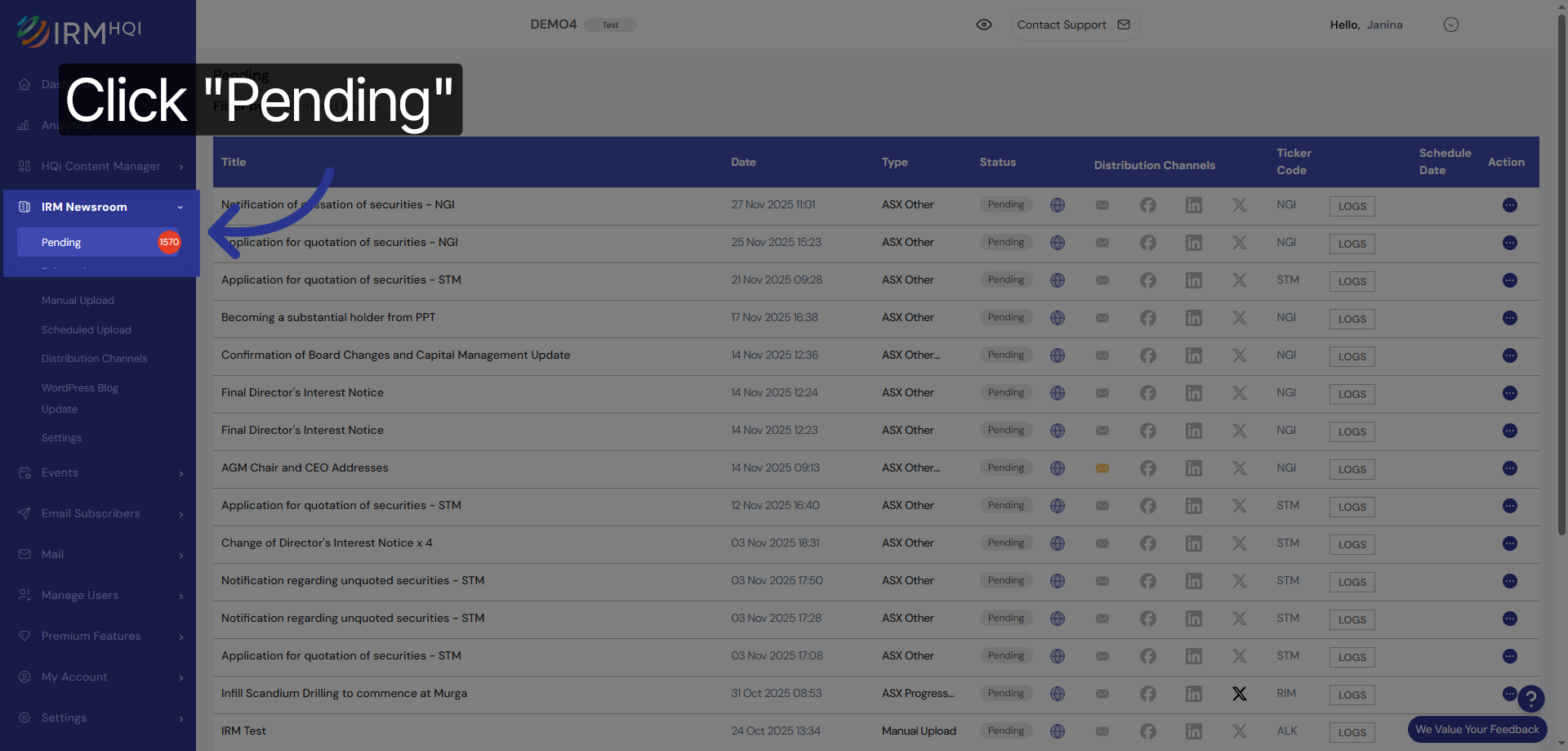
1. Select Pending Status
Click the Pending button under the IRM Newsroom section of the HQi menu.
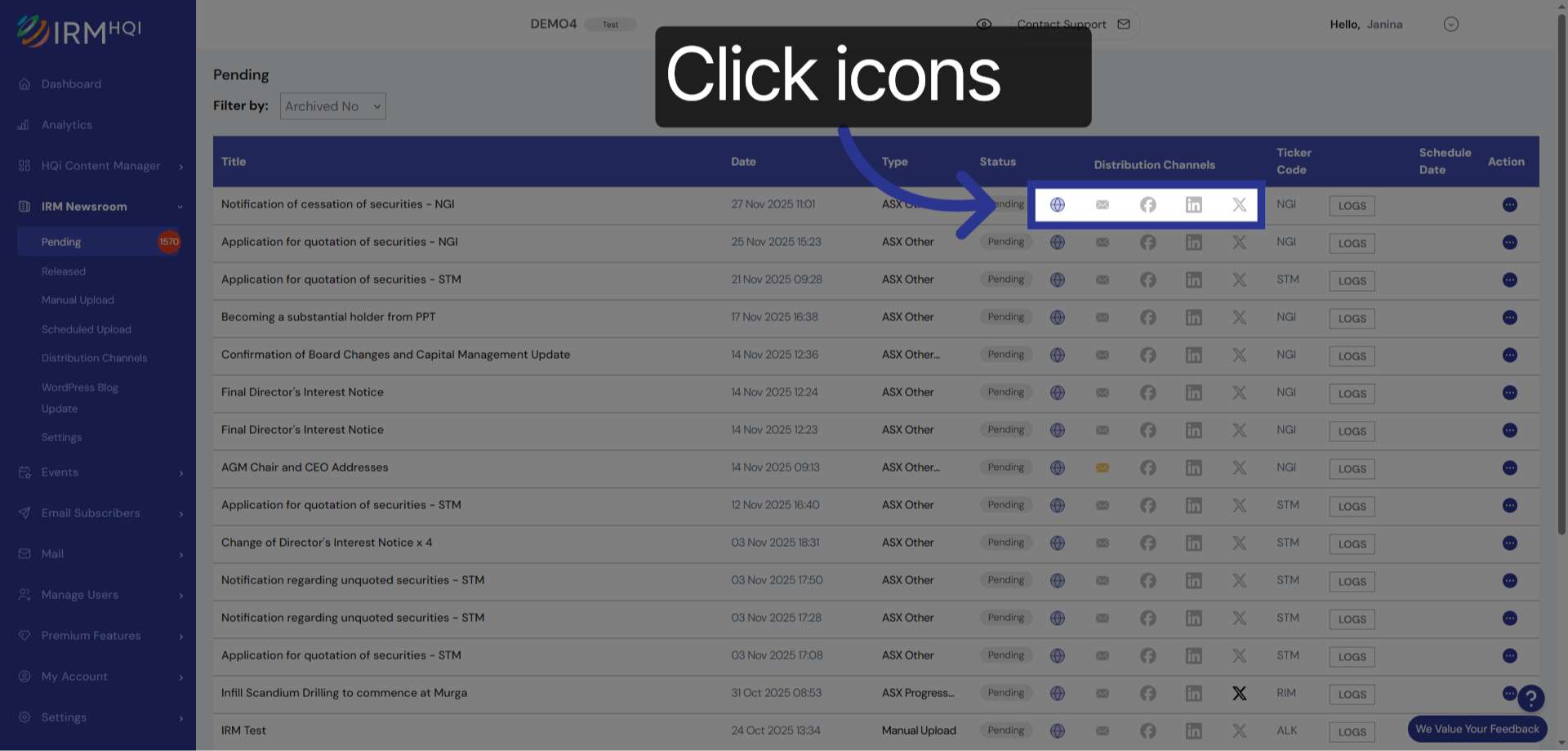
2. Open Summary Options
Click any of the icons to open the announcement editor. From there, you can update the pending announcement and generate a website, email, or social media brief using the AI Summary Generator.
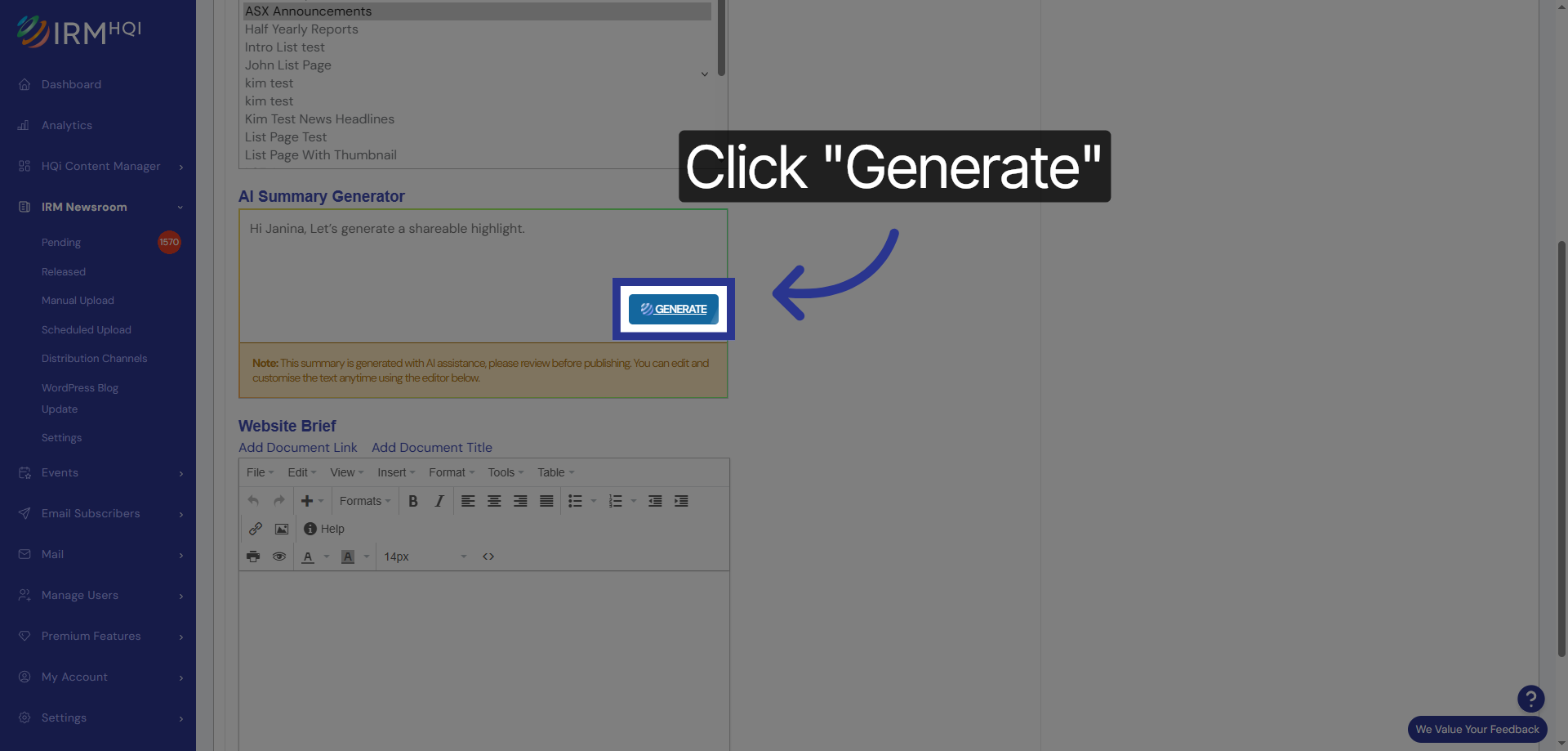
3. Initiate Summary Generation
Click Generate to start creating the AI summary based on the announcement.
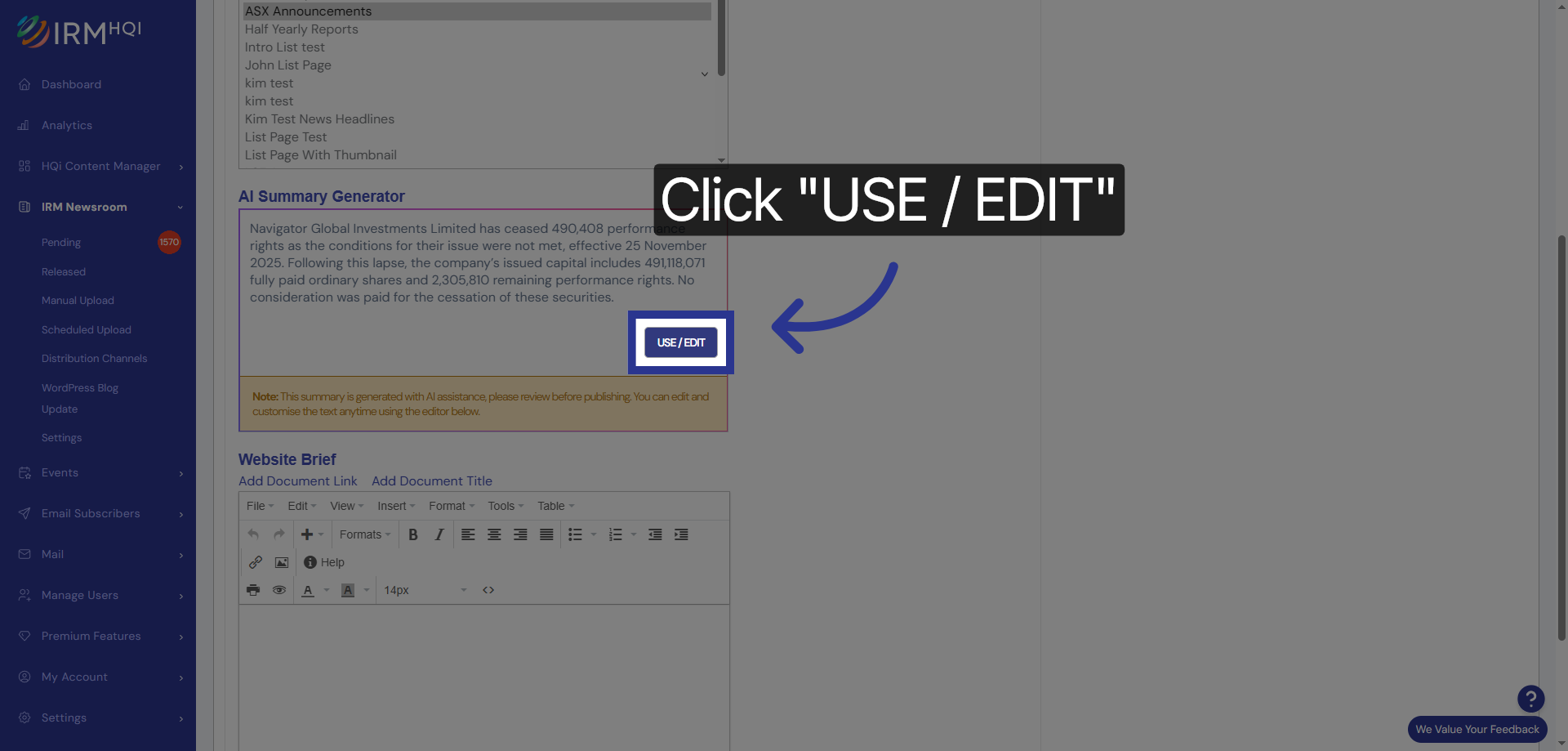
4. Choose Use or Edit Option
Click USE or EDIT to review and modify the generated summary before finalizing.
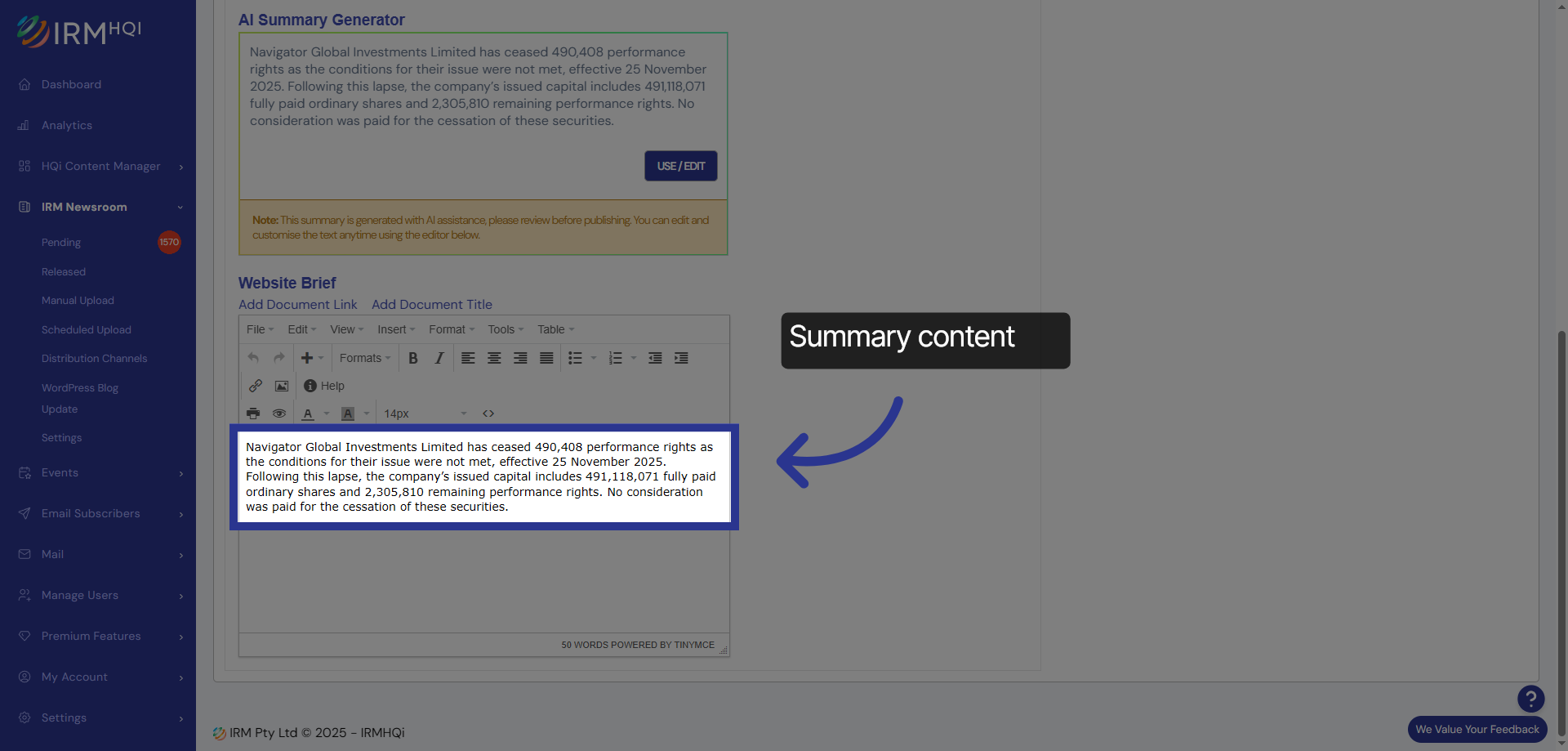
5. Select Summary Content
The summary content will appear in the Website, email or social media brief section, where you can review and update it if necessary.
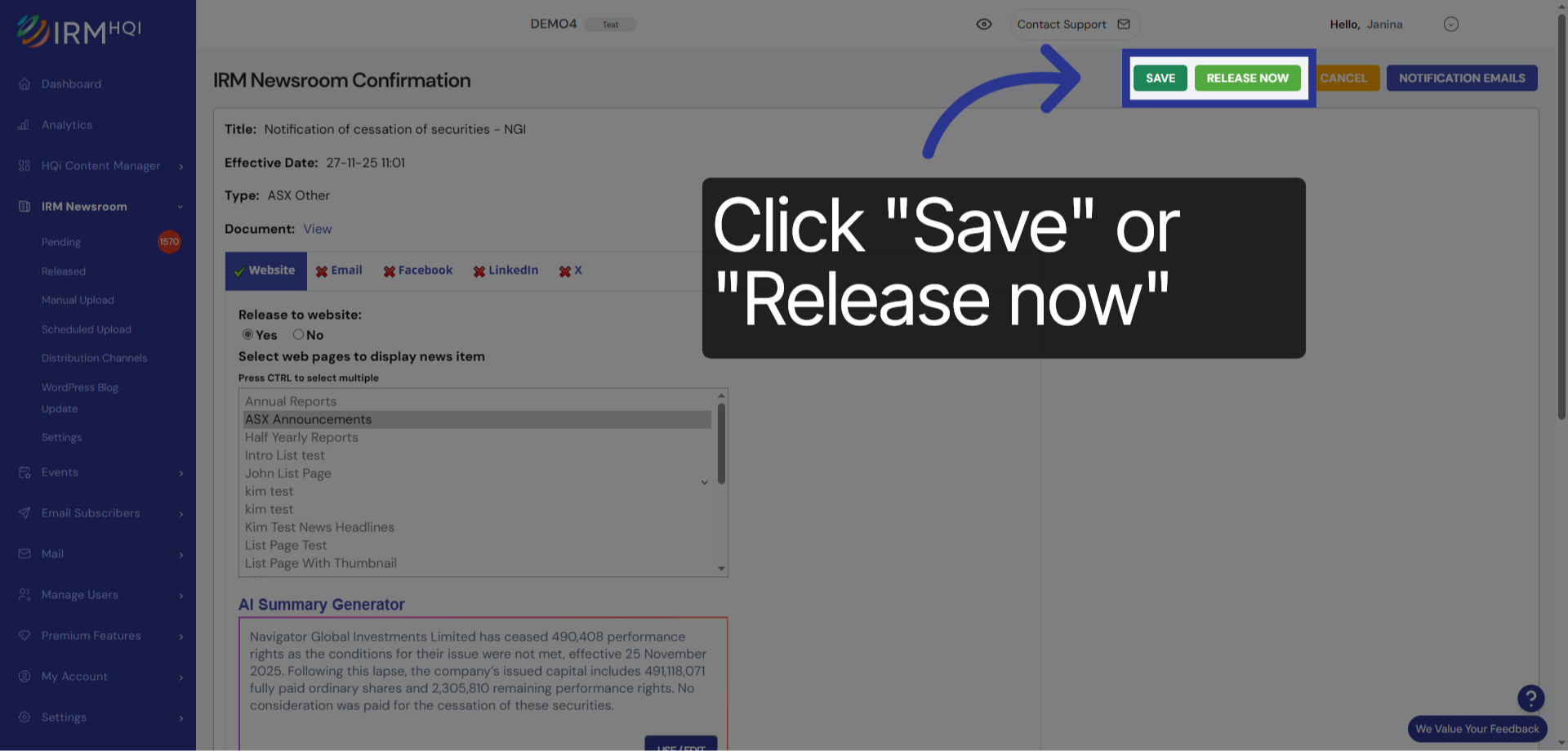
6. Save the Summary
Click “Save” to store your updates without publishing, or click “Release Now” to apply and publish your finalized updates to the pending announcement.
You have successfully generated and saved an AI summary to your pending announcementusing the HQI.